
Why self-host an LLM
When you call a hosted AI API, every prompt you send is processed on someone else's hardware. The provider sees the full text of your inputs and outputs, usually retains them for some period, and applies its own content policy to what the model will and will not say. For anything sensitive — proprietary code, confidential documents, personal data, or simply work you would rather not file with a third party — that is a meaningful exposure.
Self-hosting an LLM removes the middleman. You rent a GPU server, load an open-weight model onto it, and run inference yourself. The prompts never leave infrastructure you control, nothing is retained unless you choose to retain it, and the model is the one you picked — including open models with no built-in refusals. Combined with a no-KYC, offshore GPU server, self-hosting gives you a private AI endpoint that no company logs, rate-limits by policy, or can be compelled to hand over. This guide covers choosing the hardware and model, getting one serving, and what it costs.
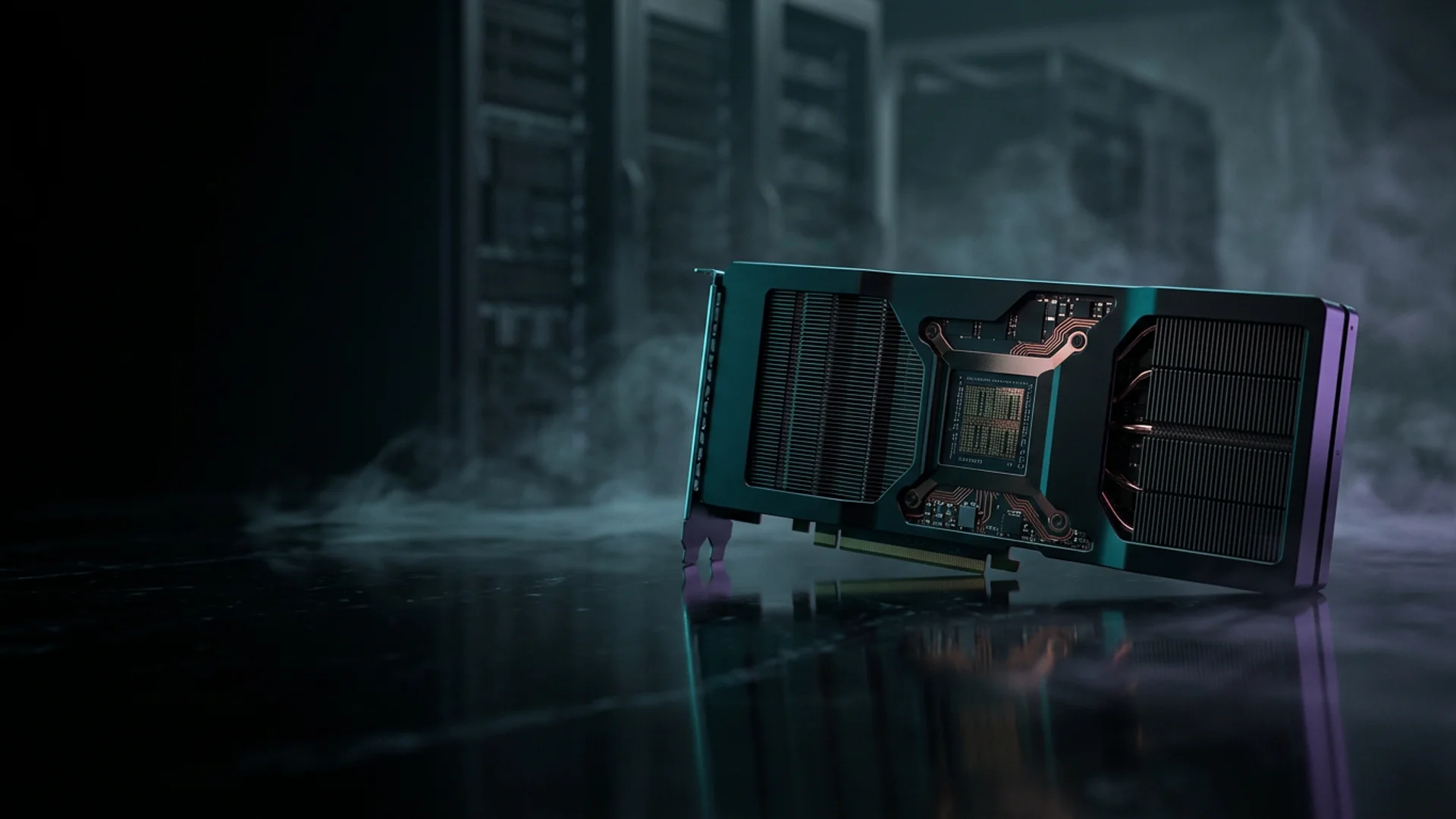
Match the GPU to the model
The single number that decides everything is VRAM — the GPU's memory. A model has to fit in VRAM to run well, and the amount it needs depends on its parameter count and the precision it is loaded at. As a rough guide, a model quantised to 4-bit needs a little over half a gigabyte of VRAM per billion parameters; loaded at full 16-bit precision it needs roughly double that, plus headroom for the context window.
In practice that maps cleanly onto the available cards:
- RTX 4090 / RTX 5090 (24-32 GB VRAM) — comfortably runs models up to around 30B parameters quantised, and smaller models at full precision. The sweet spot for most self-hosters: fast, affordable, and enough for the best mid-size open models.
- H100 SXM5 (80 GB VRAM) — runs 70B-class models quantised with room to spare, handles large context windows, and serves many concurrent requests at high throughput. The choice for the largest open models or production-grade load.
- Multi-GPU (2x H100, 160 GB) — for the very largest open-weight models and heavy concurrent serving.
Start from the model you want to run, work out its VRAM need, and pick the smallest card that fits it with headroom. Paying for more VRAM than the model uses is wasted budget.
Pick your model
The open-weight ecosystem in 2026 is strong enough that, for most tasks, a self-hosted model is genuinely competitive with a hosted API. The main families worth knowing:
- Llama-family models — well-supported general-purpose models across a range of sizes; the safe default for most workloads.
- DeepSeek — strong reasoning and coding performance, with sizes that run well on a single high-VRAM card.
- Qwen and Mistral — excellent capability per parameter, with smaller variants that run comfortably on a 24-32 GB card.
- Uncensored or abliterated variants — community fine-tunes of the above with the refusal behaviour removed, for users who want a model that does not apply a hosted provider's content policy.
Choose the smallest model that genuinely does your task well. A well-chosen 14B-30B model on a single 4090 or 5090 is enough for the large majority of real use — coding help, drafting, summarisation, analysis — and far cheaper to run than reaching for a 70B model out of habit.
Step 1 — Provision the GPU server
On ServPrivacy, choose a GPU plan with the card you settled on and the jurisdiction you want, and pay in crypto. The server is provisioned automatically — CUDA and the NVIDIA drivers come preinstalled, so the box is ready for inference work the moment it boots; there is no driver installation to fight through.
Connect over SSH. A quick nvidia-smi confirms the GPU is visible and shows its free VRAM. From here you are a couple of commands away from a running model.
Step 2 — Get a model serving
There are two well-trodden paths, depending on whether you want simplicity or maximum throughput.
The fast path: Ollama. For getting a model answering prompts in minutes, Ollama is the simplest option. Install it with its one-line installer, then pull and run a model with a single command — for example ollama run llama3.1. Ollama handles the download, the quantisation and the GPU offload, and exposes a local API. For personal use and development this is all most people need.
The throughput path: vLLM. If you need to serve many concurrent requests efficiently — an application backend rather than a personal assistant — vLLM is the standard choice. It is a high-performance inference server that extracts far more tokens per second from the same GPU, and it exposes an OpenAI-compatible API, so existing code written for a hosted API can be pointed at your own server with only a URL change.
Either way, within a few minutes of the server booting you have a model accepting prompts.
Step 3 — Use it privately and secure the endpoint
By default the inference server listens locally. You have two sensible ways to reach it, and one rule.
The rule: do not expose the raw inference API to the open internet. Out of the box it has no authentication, and an open endpoint will be found and abused. Instead, either tunnel to it over SSH — so the API stays bound to localhost and you reach it through the encrypted SSH connection — or place it behind a reverse proxy that enforces authentication and TLS. For a personal assistant the SSH tunnel is the simplest and most private option; for an application, the authenticated proxy.
Done that way, the prompts travel only between you and your own server. Nothing is logged by a third party, nothing is retained beyond what you configure, and the model answers without an external content policy in the path. It is, in the literal sense, your AI.
What it costs
The economics of self-hosting depend entirely on usage pattern. A hosted API charges per token, which is excellent for light, occasional use and expensive for heavy, sustained use. A rented GPU server is a flat monthly cost regardless of how many tokens you push through it.
The crossover comes quickly for anyone running real workloads. A single RTX 4090 server runs from around $122/mo on ServPrivacy; if your usage on a hosted API is already in that range each month — and for coding assistants, batch processing or any application backend it often is — a dedicated GPU is both cheaper and unmetered. You also gain what a per-token bill cannot give you: no rate limits, no policy refusals, predictable cost and complete privacy. For occasional one-off questions an API is fine; for anything regular, self-hosting wins on both cost and control.
When self-hosting is the right call
Self-hosting an LLM is the right choice when any of three things matter to you: privacy — the prompts contain anything you would not put on a third party's servers; control — you want a specific model, including open models without hosted refusals; or economics — your usage is heavy enough that a flat GPU cost beats a per-token bill.
If you only ask a model the occasional question, a hosted API is simpler and cheaper. But for sustained use, sensitive material, or a need for a model that answers on your terms, a GPU server running your own model is the better setup — and on a no-KYC, offshore GPU host, it is a private AI endpoint that belongs to nobody but you.